When you are in the search tab you can utilize the Map Search to select the specific area(s) you would like to search for listings. The criteria fields, with the exception of the area/zone criteria, can then be used in conjunction with the selected area(s).
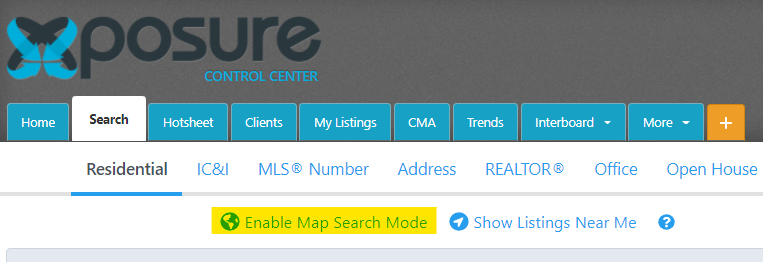
To activate the Map Search feature click on the “Enable Map Search Mode” button in either the Residential or IC&I sub tab.
The Map Search feature will open. You can define search areas on the map by drawing a circle, square, or polygon. To define a search area with a square or circle, click on the shape’s button to the right of the map search tool.
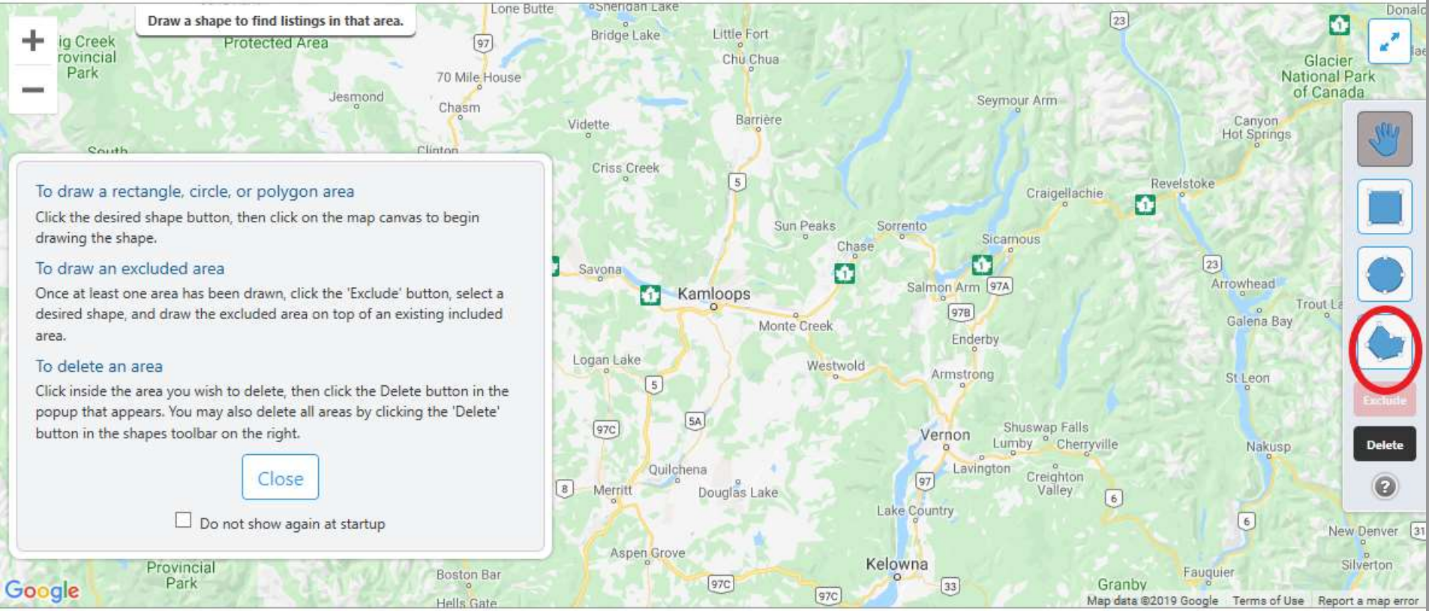
Click on the map to begin drawing a shape over the desired search area.
If using the circle tool, click where you want the center of the circle to be and drag the curser outwards to define the desired radius. When the appropriate size is determined, click the map again to fix the shape’s size.
If using the square tool, the first click on the map will indicate one corner of the square. Drag the curser outwards and click the map again to define the desired area.
To use the polygon tool, each click will create a point of the shape. Click on the first point to close and complete the polygon shape.
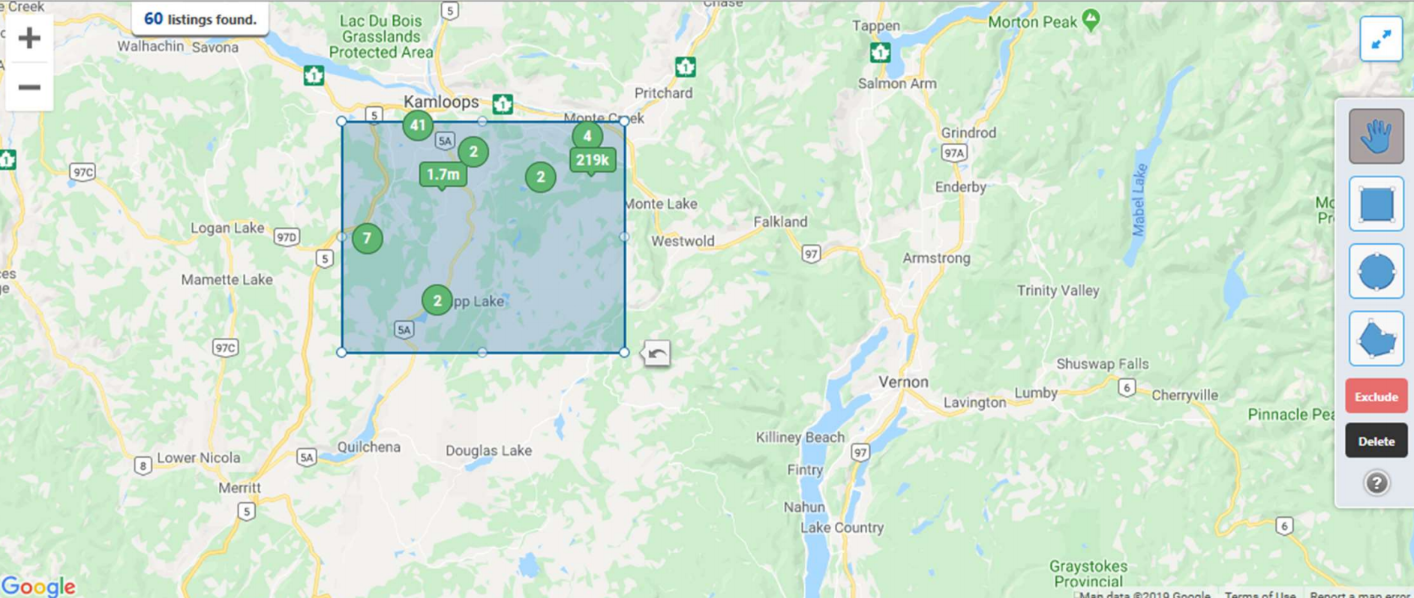
To search multiple areas simultaneously, repeat steps two and three.
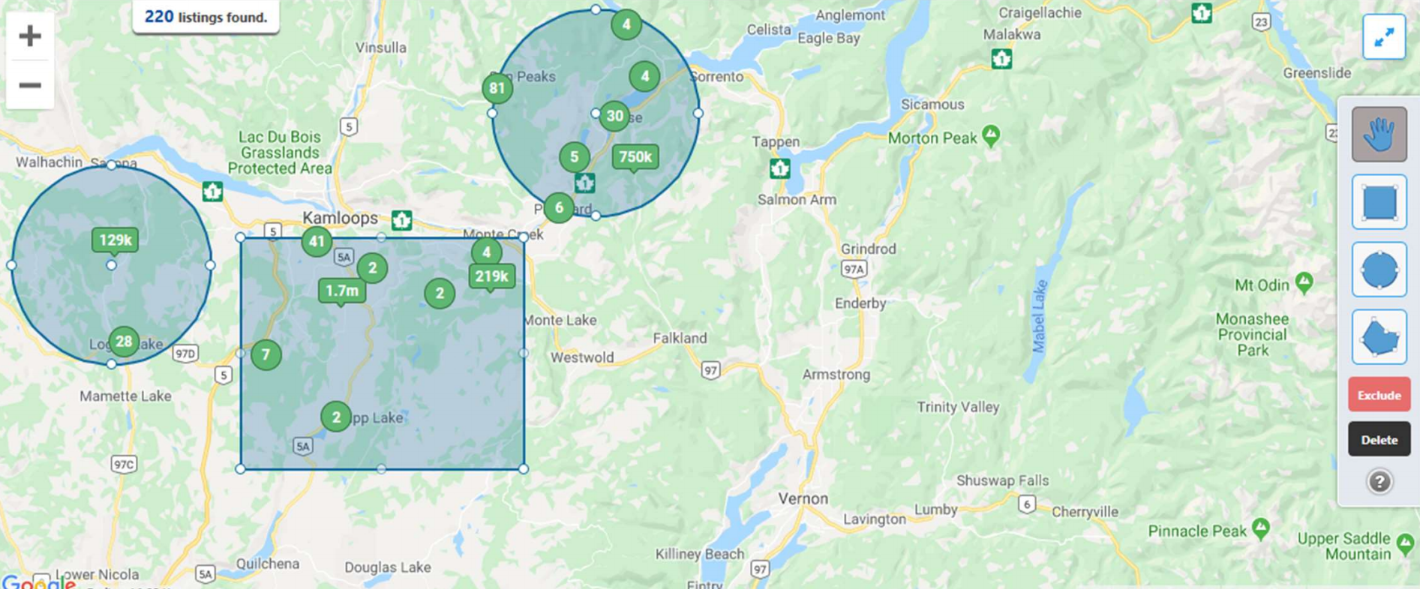
To remove a defined area, click on the “Delete” button to delete all areas or to delete an individual area, click anywhere inside the area, and click the Delete button.
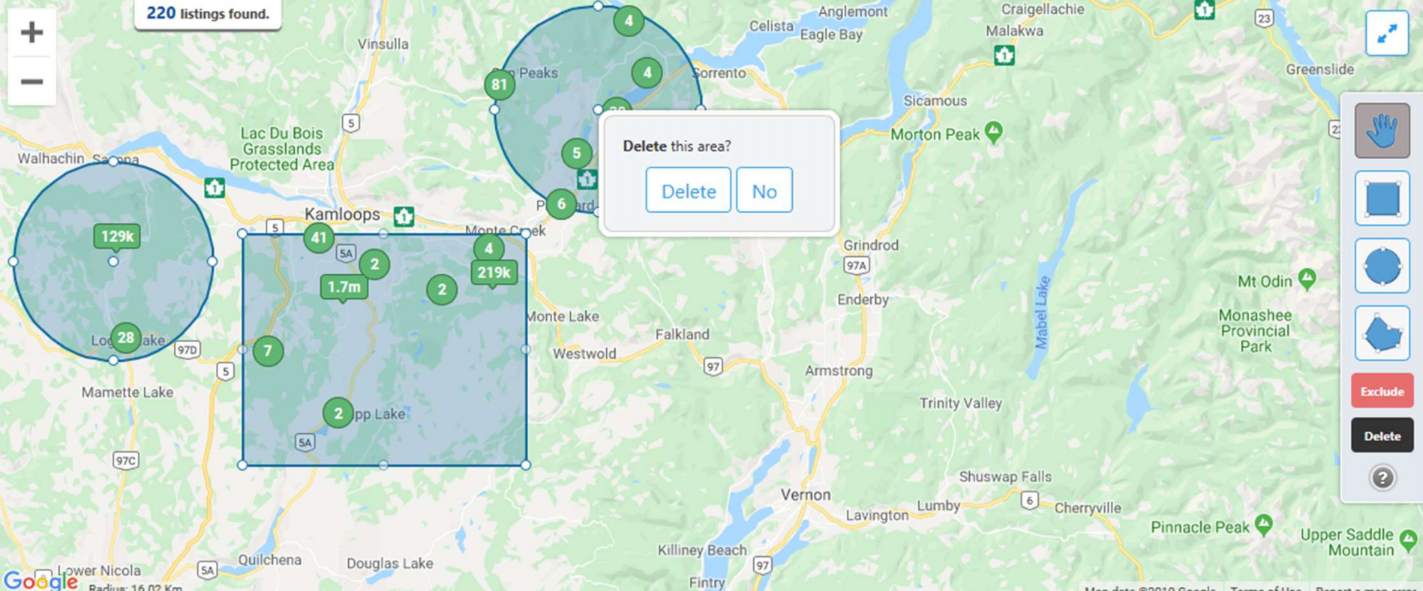
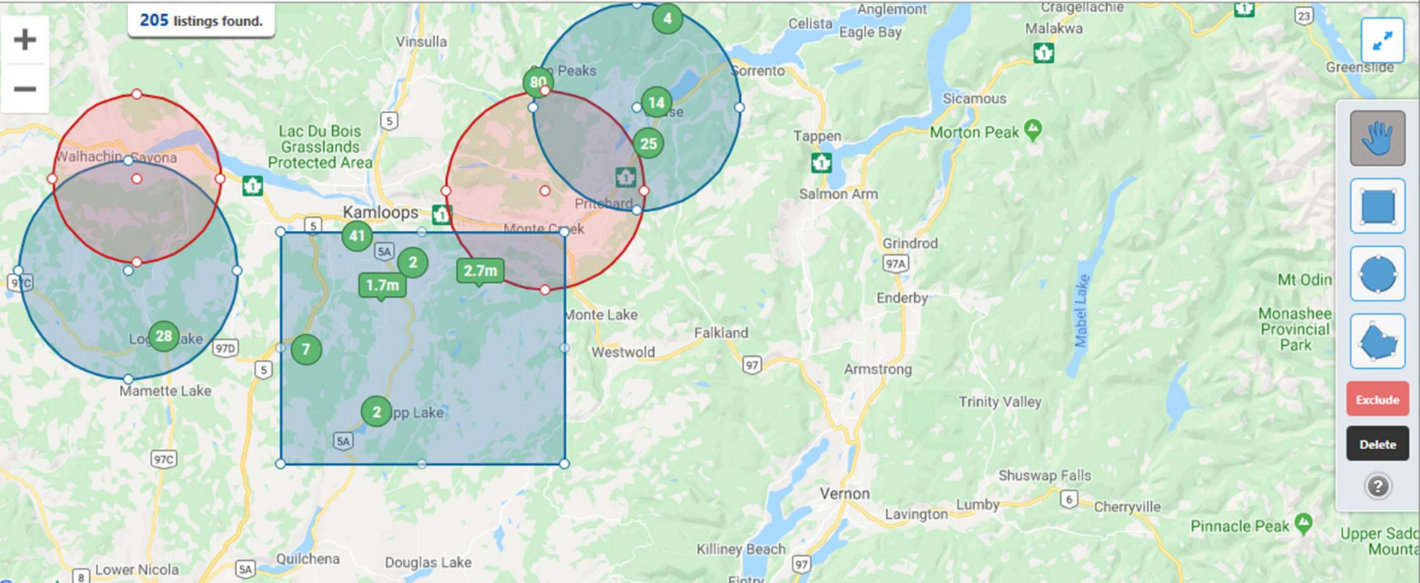
To Exclude areas, click on the red “Exclude” button. After clicking this button, the shape tools will turn red. Draw the shape onto the map (see step three to learn how to draw a shape onto the map search). “Exclude” areas can be drawn inside or overlap the “Include” areas.
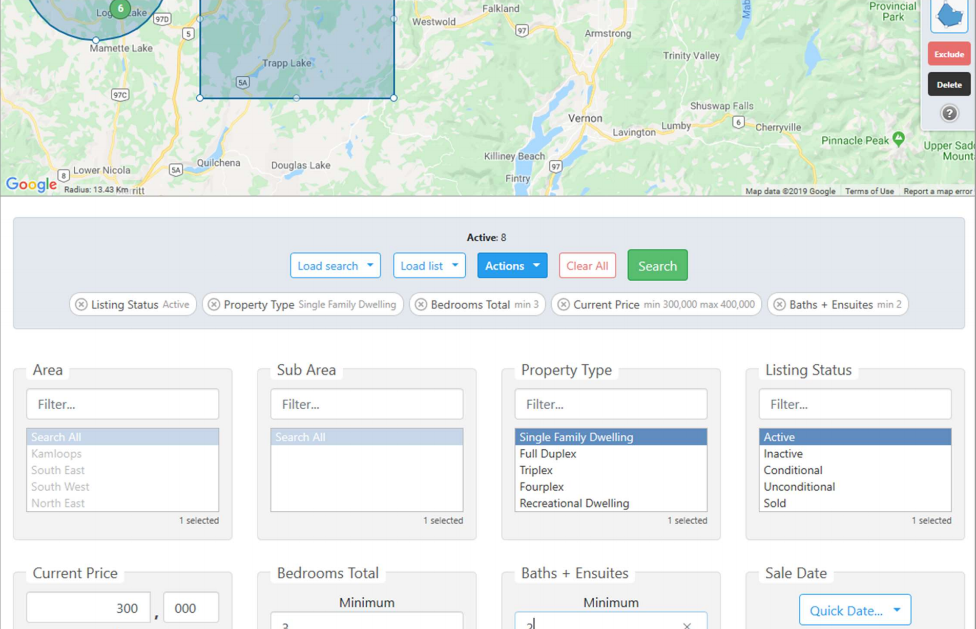
Scroll down the page to view the advanced search fields. Complete the search criteria fields to narrow down your search.
Note: the map area/sub area search fields will be deactivated when using the Map search tool as the area is now based on the map.
If the mapped area & criteria is a common search, do not forget to save your search to re-use quickly again! Click here for the walk through on how to save the search.