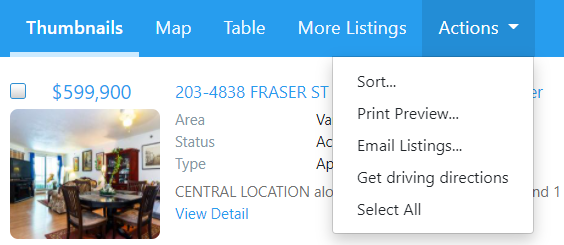
Email listings to your clients on the Xposure™ is simple by following the steps below.
Once you have compiled the properties you would like to email, select the listing in the left hand toggle column.
Select Actions and then Email Gateway Link.
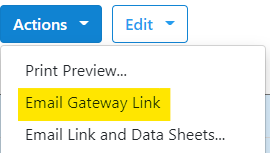
A new page will open a screen to compile your email.
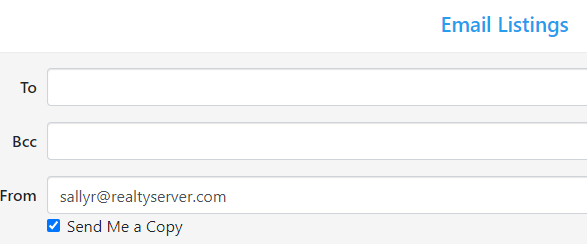
If your client is already in your PCS™ list, the To (or BCC) fields will populate their email address by typing their name. If this is a new client, enter their email address as needed.
The From field will auto populate the email address associated to your account. You can select to send a copy or untoggled to not receive a copy. You can also add the subject and information in the body of the email message.
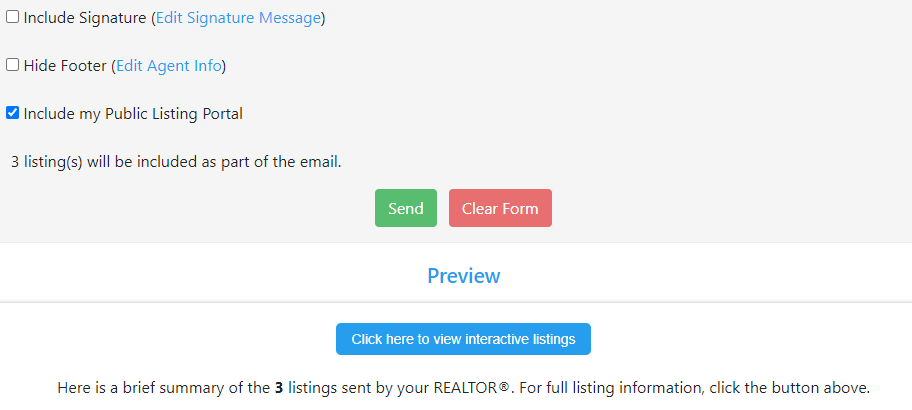
At the bottom you have options to include your signature, hide your footer, and include your Public Listing Portal.
UPDATE - You can now attach files to the clients email! Click HERE for more information.
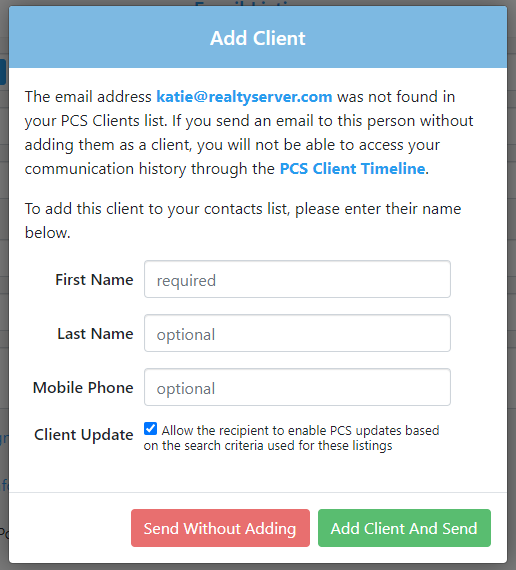
If your are emailing a new email address, when you click the send button you will be prompted with a screen to optionally add the client to your PCS™. The client will need to confirm they would like to be a PCS™ client. By having the email associated to a PCS™ client, you can track the communication through the PSC™ Client Timeline.
Curious how this will look on your clients side?
Your client will see a summary list in the email body they receive. When they select a listing, they will then be taken to your Public Listing Portal. You can preview the portal prior to sending by clicking the blue "Click here to view interactive listings" button.
Your Public Listing Portal will open in a thumbnail view. Clients can change their view to a map or table view. They can also click the Actions button for further actions.