Agents can now attach a PDF or image file to clients emails from Xposure™.
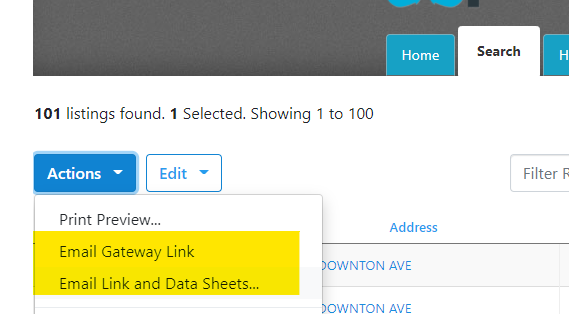
From the Search results tab, once you have selected properties to email your client, click the blue actions button in the top left hand corner. You can then choose from one of the two email options, as shown below.
You can also email the client from the clients Timeline.
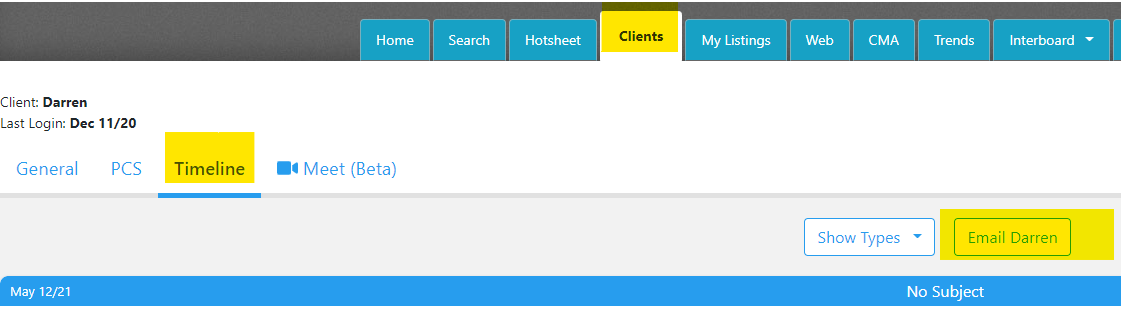
Go to the clients tab and select the client you would like to email. Once you are in the client's profile, select the Timeline tab. Along the top of the Timeline, click the Email button, as highlighted below.
Attaching the File
When the email opens, there is a new option to Attach File(s), as highlighted below.
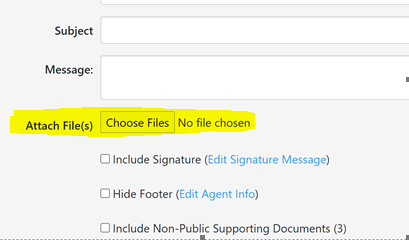
Click the Choose Files button to find the file. The file most be on your device to be attached to the email.
There is a limit on the size of the attachment. You are able to attach 10MB total for all of the attachments.
Once you have attached the files needed, complete your message to the client and click send.