A new feature being rolled out allows your clients to make notes on their favorite listings in their Private Client Services™ (PCS™) portal, as well as email your agent.
A couple of tips on the use of client notes. There are no notifications to the client or agent when notes are made. Clients notes are only applicable to the clients' Favorite listings, however, Agent notes can be made on listings in both the Results and the Favorites tab. Notes are also only visible from the Thumbnail view of the Private Client Services™ Portal.
Clients Point of View
Agents Point of View
Agent Notes
March 2023- The Agents Point of View has been enhanced. See Agents Notes for details.
Clients Point of View
In the clients PCS™ portal, once the client tags a listing as a favorite, the property will be moved to the "Favorites" tab, as shown below. Under the listing remarks, there is now an area to "Add Notes".
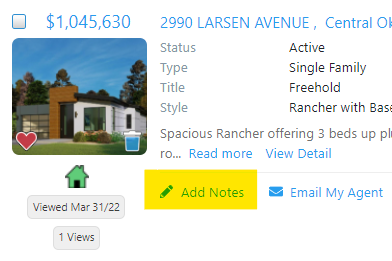
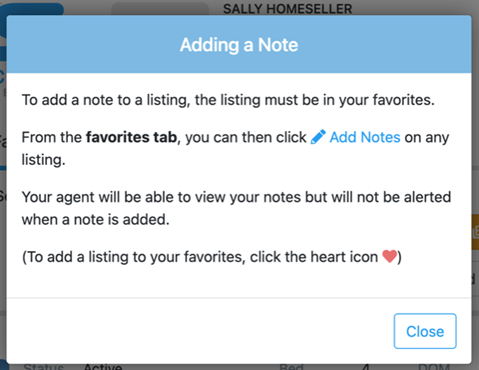
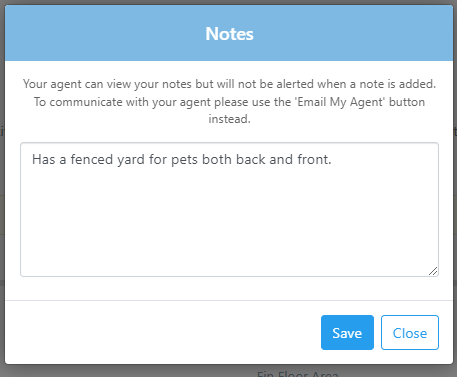
When the client clicks "Add Notes", a pop up box will open. The client can type their notes and then click the "Save Button" along the bottom.
As noted in the pop up, the notes are meant for the client. Agents will not be notified when a note is added, or edited. Agents can view the notes, and that is noted lower in this article.
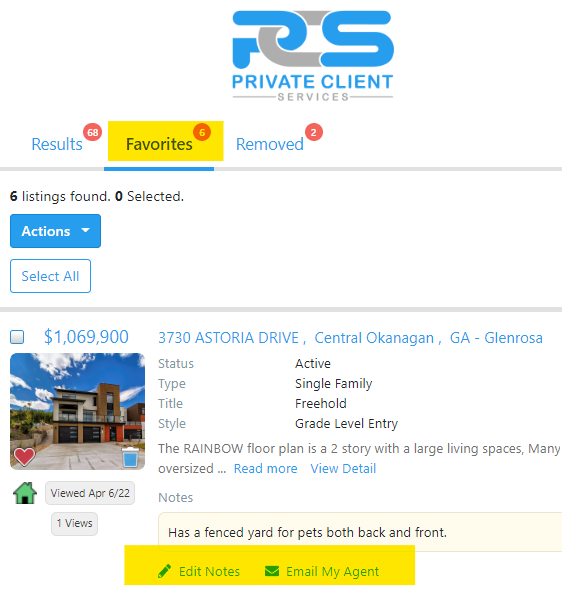
Once the note has been added, that note is now visible to the client in the Favorite tab, as shown below. Clients can edit the note as needed. If the client would like to email questions or comments to their agent, there is now also an "Email My Agent" button as shown below.
Agents Point of View
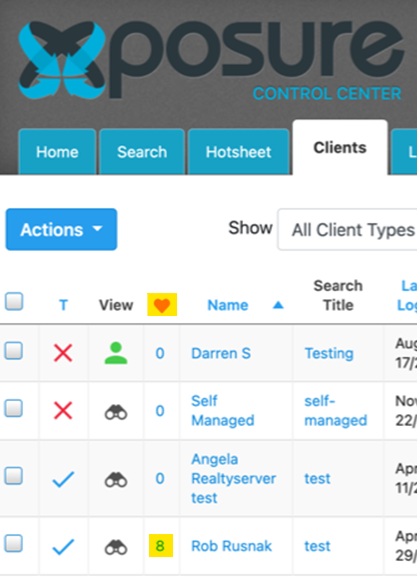
From an agents POV, notes will be visible when you mirror your clients PCS™ portal. You can either click the icon under the view icon, or in the new favorite column, where a number is present.
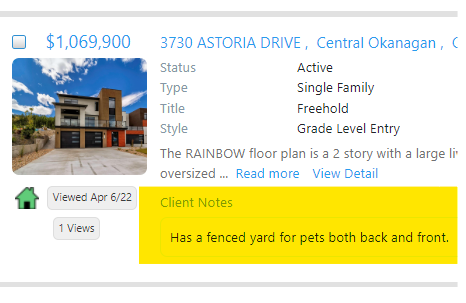
The Client Notes are visible to you on the favorites tab. An agent is not able to make any changes to the clients notes, they are only visible to the agent.
Agent Notes
Agents can now add notes to all the listings in a client's PCS™ portal. They can be hidden from the client, or visible.
Agents will still need to mirror into the clients PCS™ portal as shown above in Agents Point of View. You will now see "Add Notes" under each listing, in either the Results or the Favorites tab.
A pop box will open as below. You can type your note in, choose if the client can see the note, and then click Save to complete the note.
Your note will now be shown under My Notes. There is an icon that shows the clients' visibility. You can click the icon to show if the note is visible or not.
Visible
Hidden
You can edit the note by clicking "Edit Notes".
The pop up will open again. This time, you can edit the previous note, change the client visibility, or delete the note. Click the Save button to save changes to the note or visibility, or click the delete button to remove the note completely.
When you click the delete button, you will see a small pop-up confirmation box. Click OK to delete the note.