By customizing the search screen, you can generate the relevant results quickly and save your self time the next time you are completing a similar search. Here are 2 ways to customize your search tab.
1. Change the layout of the filters, and even hide the ones you do not use!
The search screen can be a long list of filters that are overwhelming when you are selecting your search criteria. You can now hide the filters that are not relevant to the search, and re-order the filters to suit your requirements. For a short video, click here.
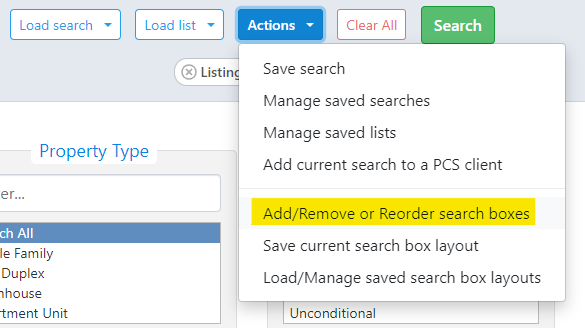
First, go to the Search tab within Xposure™. Then click the blue Actions button. You will see a list of options. Select "Add/Remove or Reorder search boxes".
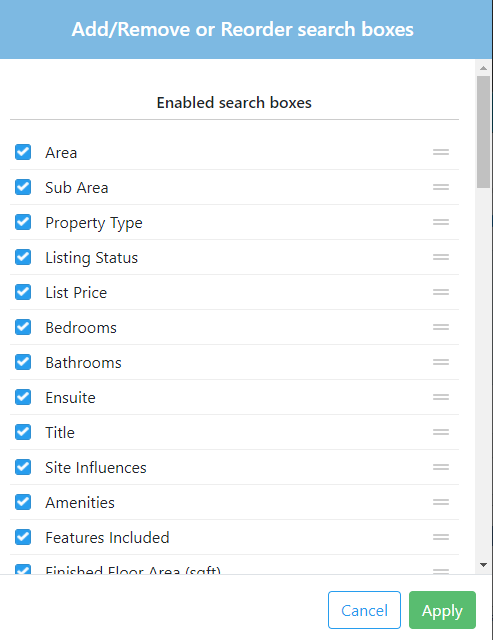
You will now see a new screen. To hide a filter, unselect the toggle on the left hand column. As you are hiding the filters, they are being populated at the bottom of the list under a disabled search box area. To the right side of the filter, you will see 2 horizontal lines. Click over the icon and you can now drag and drop the filters in the order you would like.
Once you have made the changes, select the Apply button.
*Note - the Address bar can not be moved.
2. Save multiple layouts for future use.
The last step is how to save this format for future use. You can also save multiple layouts to quickly use time and time again. You can have now quickly show the relevant filters for a Single Family Home vs a Condo.
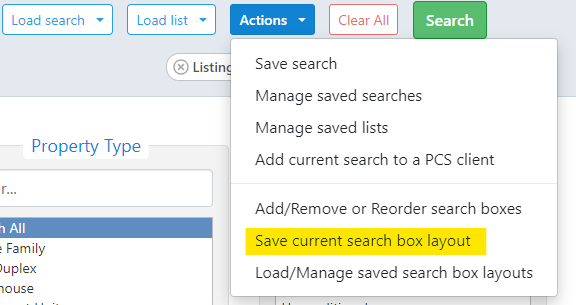
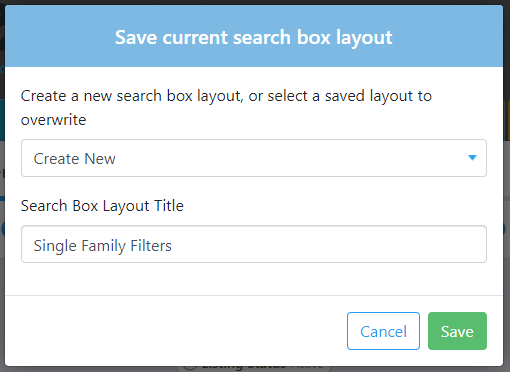
First, click the blue Actions button at the top of the screen. Then click "Save current search box layout".
In the Search Box Layout Title box, name the search for your reference. Click Save to leave the screen.
*Note, if you are changing an existing layout, select the drop down menu and select the layout to apply the new filter settings for.
If you are creating multiple layouts, you can select your default layout.
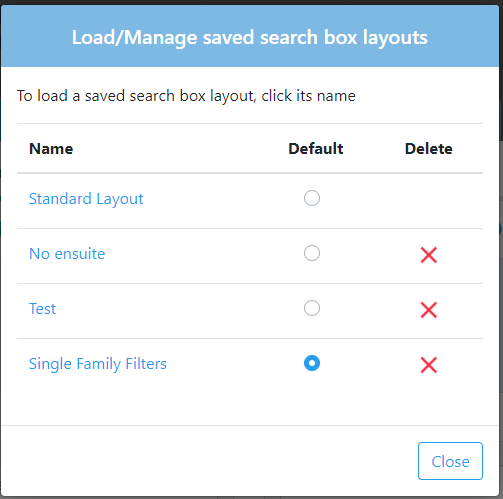
Click back on the blue Action button, and then down to Load/Manage saved search box layouts.
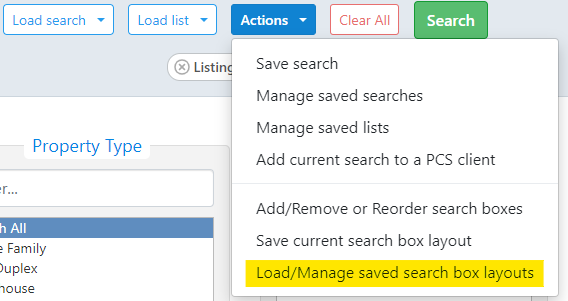
A new screen will open. You can then select which layout is your default. Click the Close button to save the change.
*Note, you can also delete layouts from this screen by selecting the Delete red X and confirming the deletion.