Once you have set up your clients to receive PCS™ notifications, they will receive an initial activation email and then notifications when listings match their criteria. The templates used for the emails can be customized for all clients, or for individual clients.
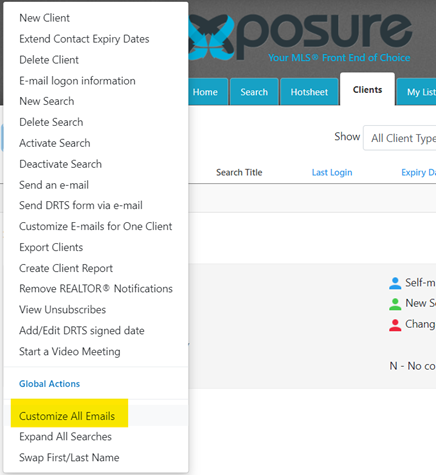
To start, log in to Xposure™ and click on the Clients tab.
Once you are in the client tab, go to the blue actions button on the top left hand side, and then third from the bottom of the list is Customize All Emails. If you wanted to really customize by client, click the clients name and then the 11th option is Customize E-Mails for One Client..
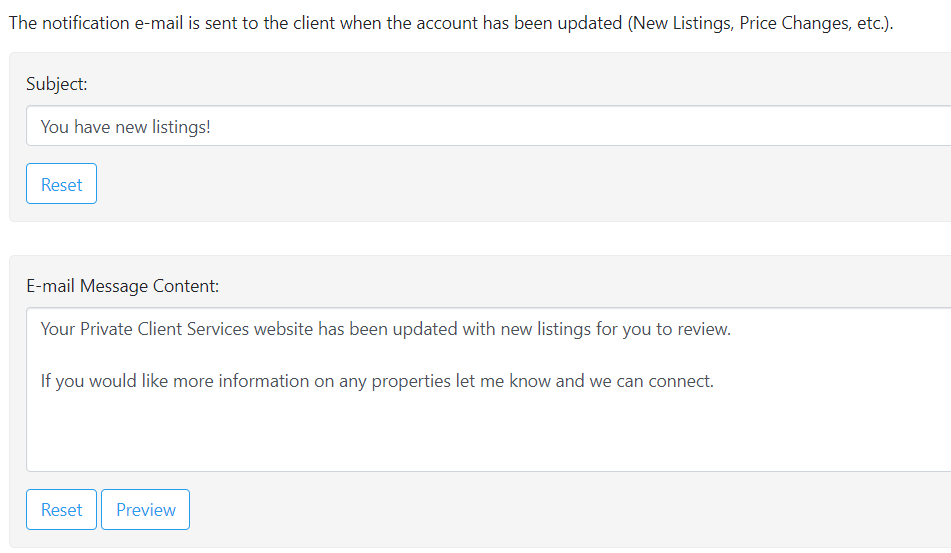
You can now change the subject line and body of the notification email and the activation email. Once you make a change, you can preview what the email would look like.
Once you are happy with it, the save button is at the bottom of the screen.