Some Real Estate Boards have rules surrounding how an agent keeps a PCS™ client search active. If an agent belongs to a Real Estate Board with such a rule, the agent will need to renew the expiry date of the clients PCS™ profile every 90 days.
If your client is not renewed prior to their expiry date, the profile will expire and the search will be deactivated. Agents can renew the expiry date and then proceed to re-activate the search, if needed.
Below are tips to capture the expiry dates beforehand.
Set up a Client Expiry Notification
If the Client is set to expire within 30 days
If the Client Expires
Set up a Client Expiry Notification
This can be completed by clicking the More tab and then My Account. From My Account, click on My Preferences. A new window will open. You will see a drop down menu at the top of the screen and the Client Expiry Notifications are in the drop down. 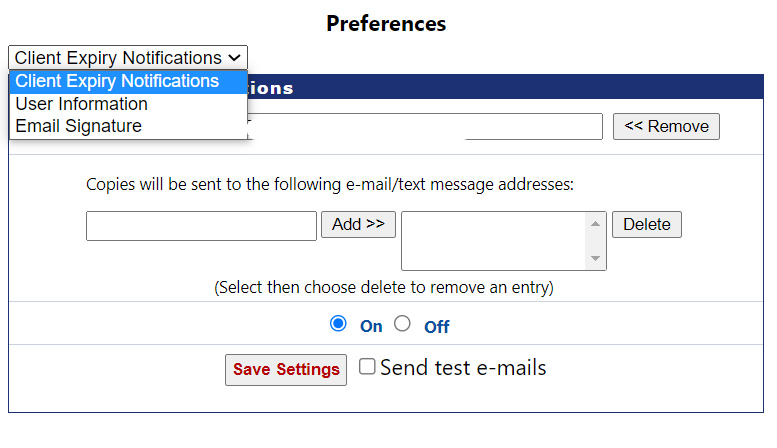
If the Client is set to expire within 30 days
- Watch for the yellow check mark in the T column of the Clients tab. The checkmark will turn yellow if the expiry date is within a 30 day window of an upcoming expiry.
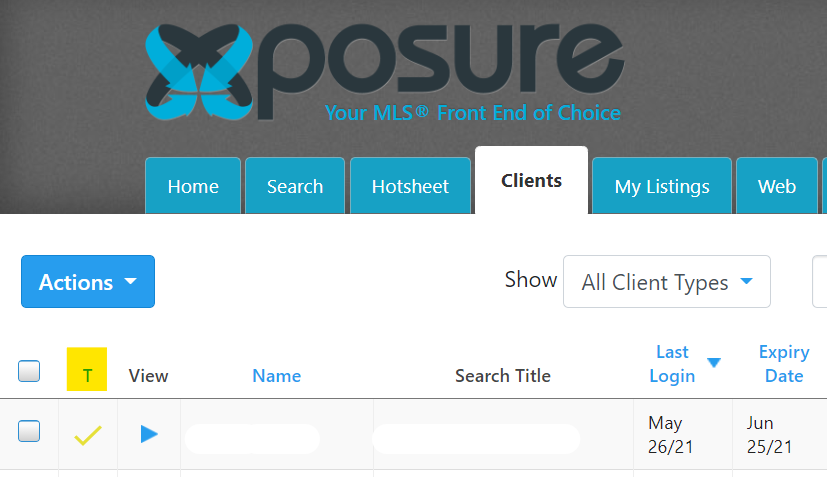
- Sort the clients by the Expiry Date Column and check for clients whose expiry dates are within 30 days.
- Place a check mark in the box to the left of the client’s name, ensuring you select their name and not their search.
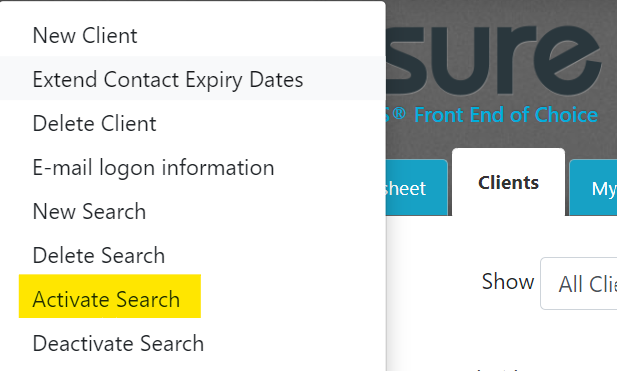
- Click the blue Actions button and then select “Extend Contact Expiry Date”. This will extend them for an additional 90 days.
If the Client Expires
If your client does expire, the client expiry date will need to be extended, and then the search will need to be reactivated.
To reactivate the client, select the client profile. You can select multiple clients to be renewed at the same time, as long as you are selecting their name and not their search.
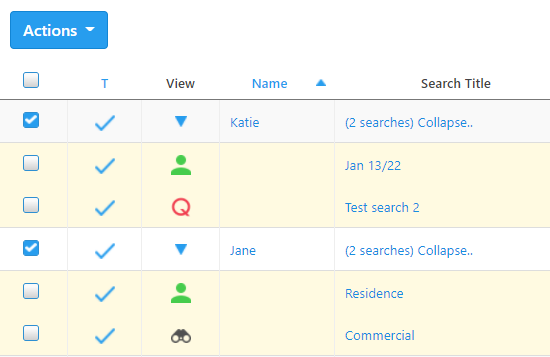
Next, click on the blue actions button on the left hand side of the clients tab.

Now select Extend Contact Expiry Dates. You will have a confirmation screen pop open before extending the dates. All contact expiry dates will be extended for 90 days.
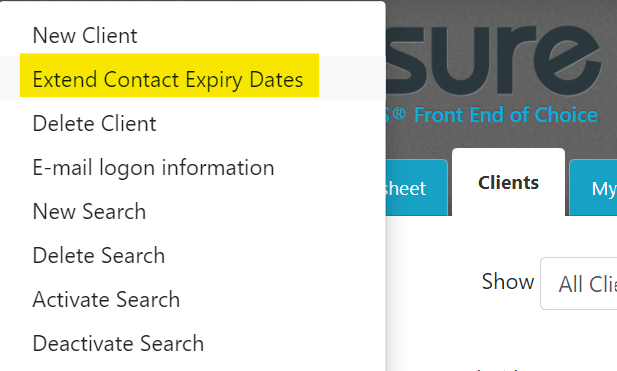
The last step is to reactivate the clients search. Client searches need to reactivated one at a time; ensuring the client is still looking for properties with multiple search profiles.
To reactivate the search, click the applicable search. If the client has multiple searches, like below, repeat the process as needed.
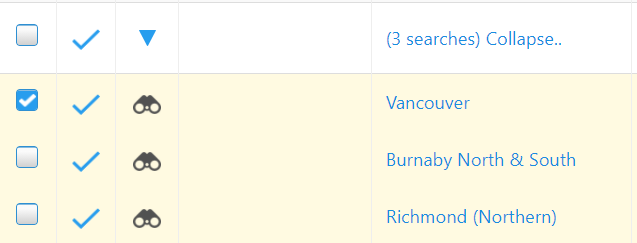
With the search selected, click the Blue Actions button and then Activate Search.