This feature is for agents that belong to boards that have agreements in place to upload photos through Xposure™. If your board does not have an agreement in place, photos will need to be uploaded in your boards primary software.
Photos can be uploaded through the My Listings tab. Click Autoload under the Tools column.

A new window will open similar to the screenshot below. Note, the numbered tabs may be different depending on your boards agreement.
Photos are uploaded under #3. Click the + Add Photos button. A windows box will open to select the photos from your device.
Photos must be a minimum of 640 pixels in width and height, and less than 10 MB in size.
TIP ~ Agents should also be aware when they are taking photos on your device, turn your phone to the left when going from vertical to horizontal photos. This will stop the photo from uploaded upside down. Horizontal photos do present on most screens and devices more favorable then a vertically shot photo. 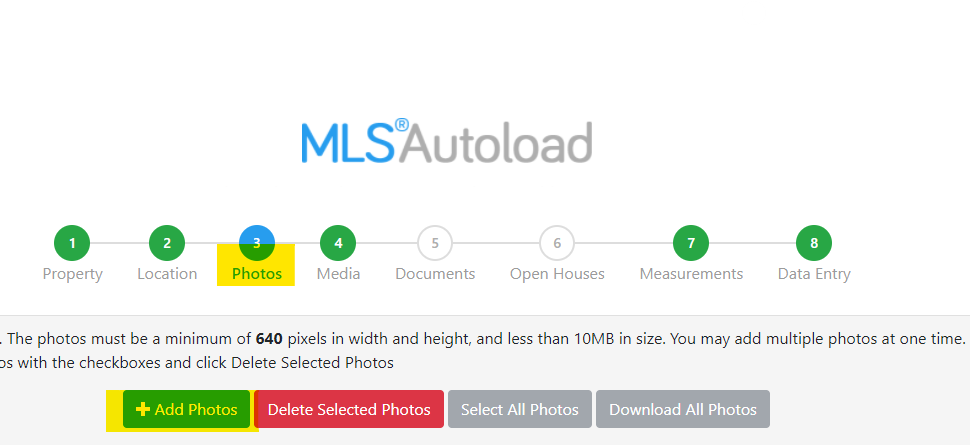
Once you have selected your photos, you can drag and drop the photos in the order you would like. Click the next button on the bottom right hand side to save the photos.