Your clients may have multiple email addresses to have notifications sent to when properties that match their search criteria are listed, or revised. Below are the steps needed to set multiple emails addresses to a single search. Note - you can add multiple addresses when you first set up the clients by following the steps 4 - 6.
1. Click on the Clients tab to access your list of clients. Find the client in the list.
2. Click the applicable search in the Search Title column.
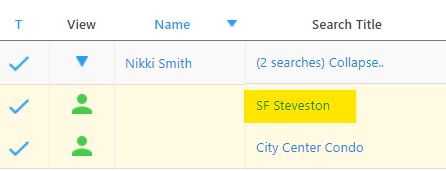
3. The client's profile will open in the PCS tab. Select the Settings tab as shown below.
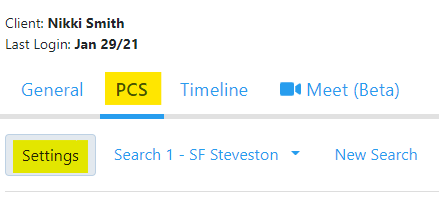
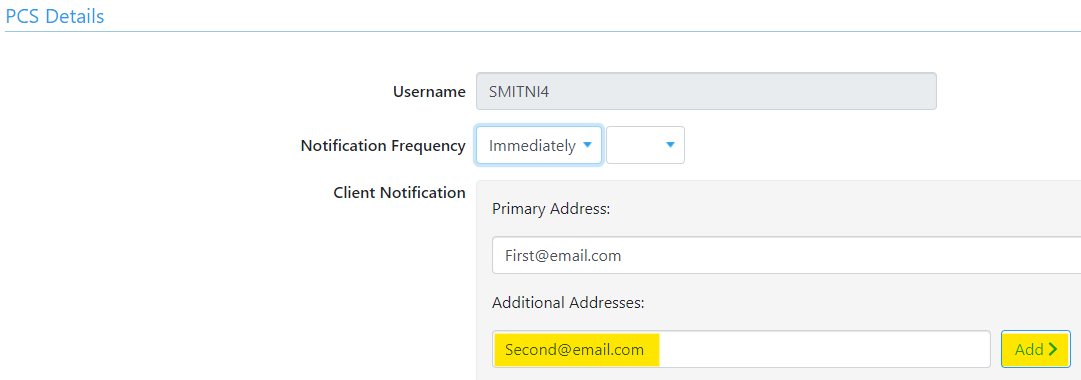
4. Scroll down to the PCS Details.
5. There you can add the email address under Additional Addresses.
6. Click the Add button.
The additional email address will move to the box on the right hand side as shown below.
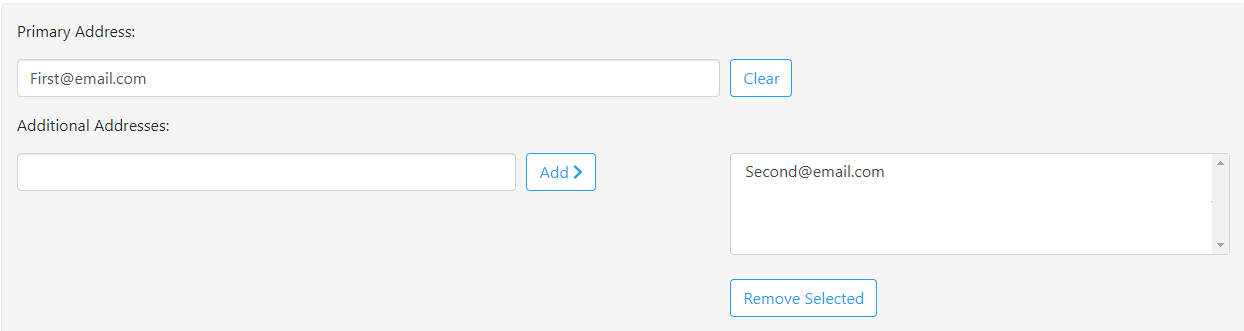
If you need to remove the address, select the email address and then click Remove Selected.
7. Click Save at the bottom of the screen.
Agent Notifications
Agents can be notified via email when a client notification is emailed. On the same screen that you added the multiple emails addresses there is Realtor Notifications. This option is located at the bottom of the screen. You can set the email address you would like the notification sent to or, if you do not want email notifications you can clear the email address.
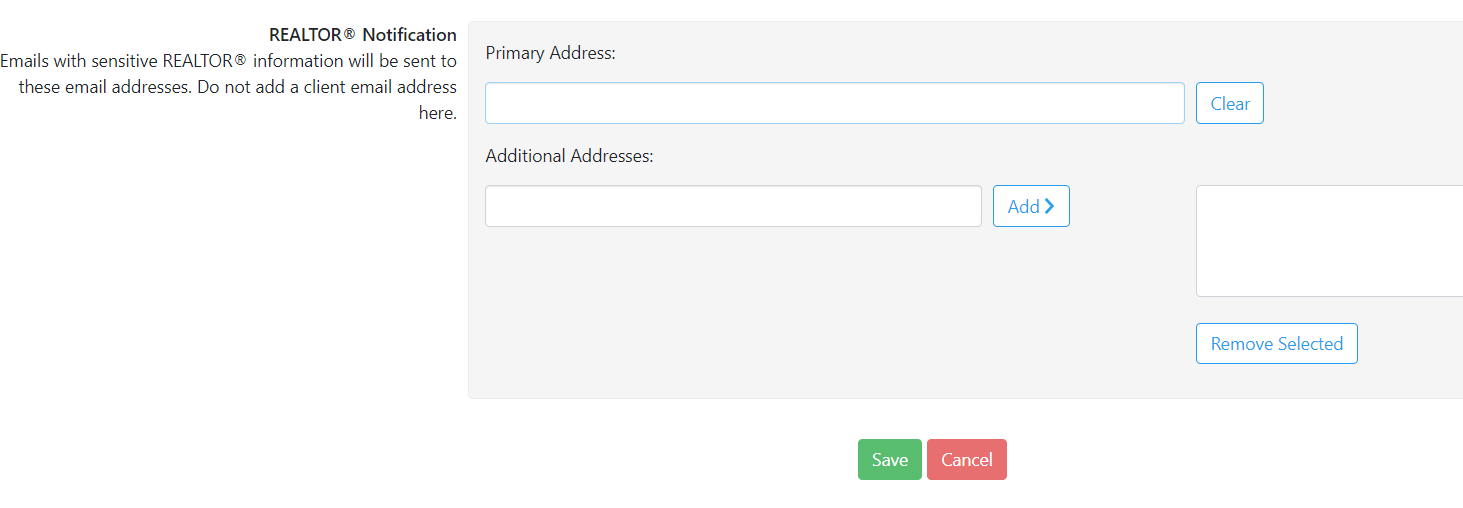
Ensure you click the Save button at the end of the page before leaving to secure the changes.
If your client has multiple email addresses associated with their profile, and wants to unsubscribe on their side, each email address will individually need to unsubscribe. If they are re-activated, and they again unsubscribe, their profile will become de-active and will need to be recreated if they would like to set up a new search.