Having the correct phone number associated to your account is vital for consumers to contact you. Xposure™ allows you to have your preferred contact number shown on electronic or printed listing information. Below are the two areas to verify your phone number.
1. The Phone Number shown on the Listing Portal and on the bottom of your printed Feature Sheets.
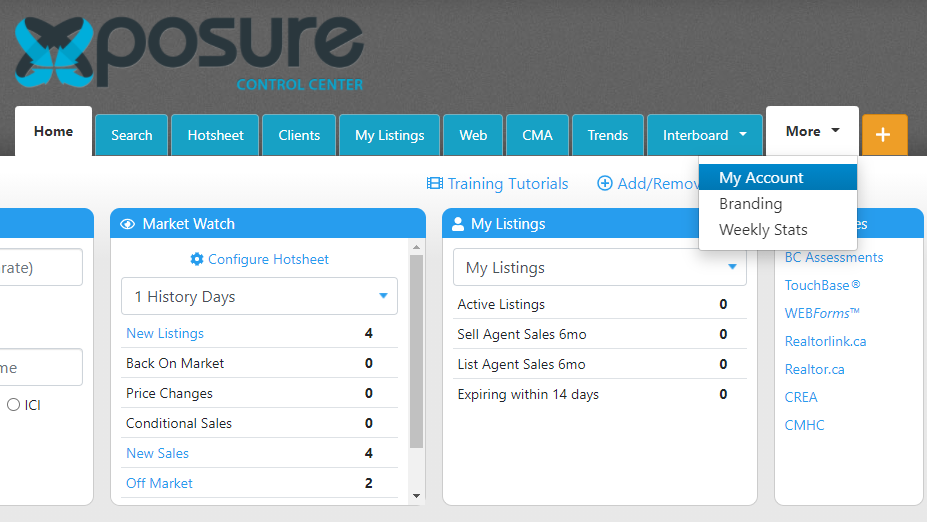
In Xposure™, click on the More tab. In the drop down menu, click on My Account.
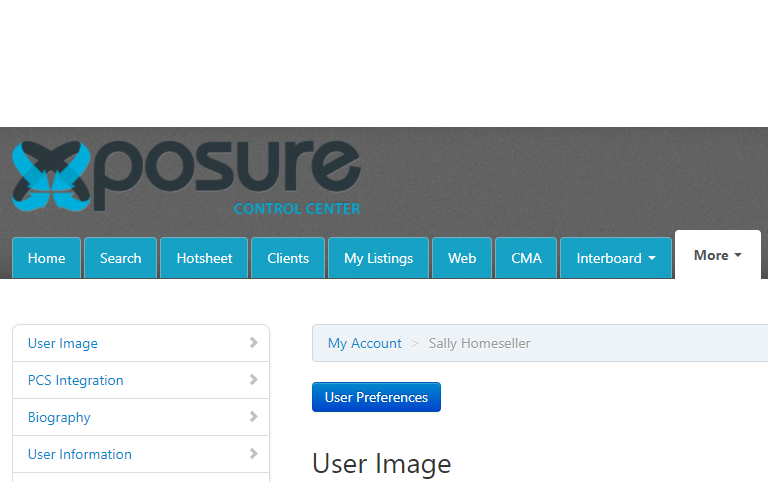
In My Account, click on the blue button named User Preferences.
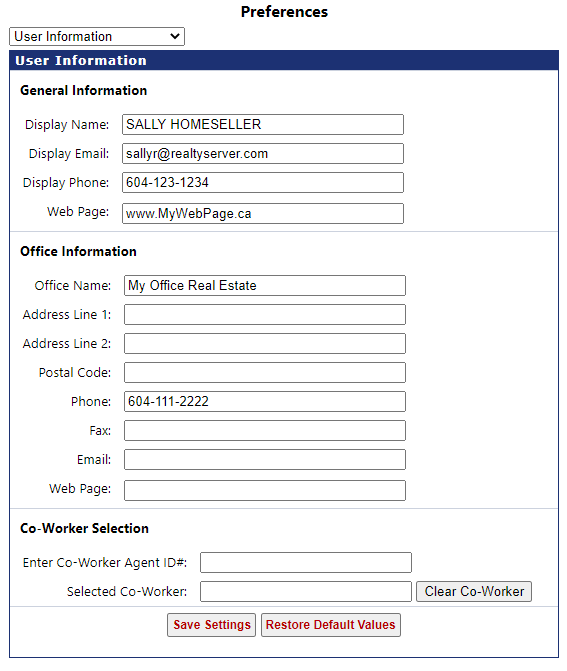
A new window will open. You can now fill in the appropriate fields. If you have a second phone number, likely a cell phone number, please follow step 2 further down to add your cell phone number.
Once you have entered the fields you need to update, ensure you click "Save Settings" at the bottom of the page.
2. Displaying your Cell Phone Number
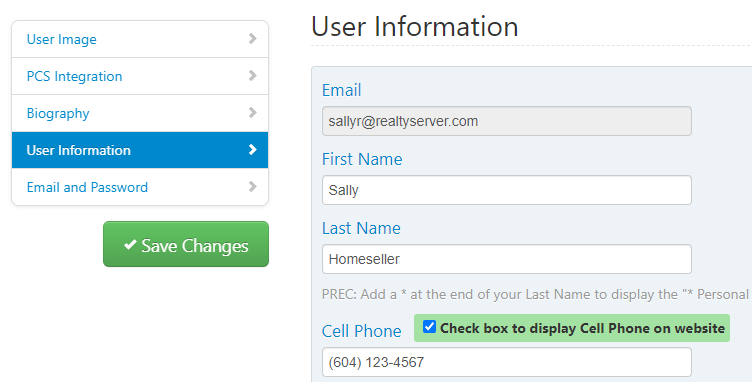
Your Cell Phone can also be added in the My Account page, under the More tab. Click on the User Information in the left hand side menu.
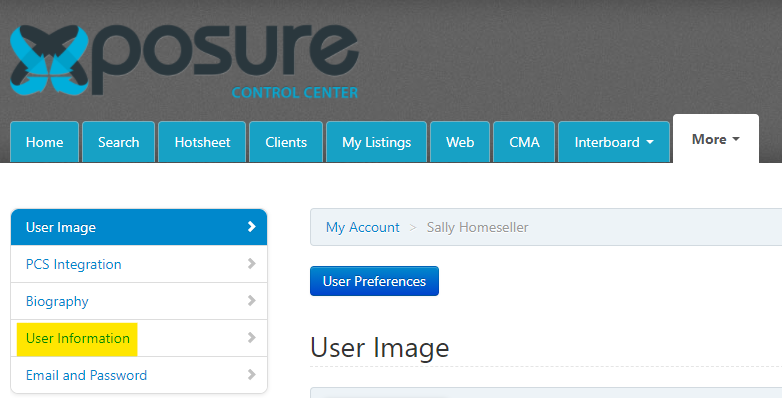
The fourth field is where you can enter your Cell Phone Number. By checking the box next to the field, your Cell Phone Number will also be shown on the Listing Portal.
Click the Save Changes button on the left hand side to confirm your change.