One of the first steps in the configuration of your account is to add your photo. This is what will be shown on printed content and on your client's gateway links. For a short video, click here
*Note - This step will not change your photo shown on Realtor.ca®. Your board/association will need to upload your photo to be shown on that platform.
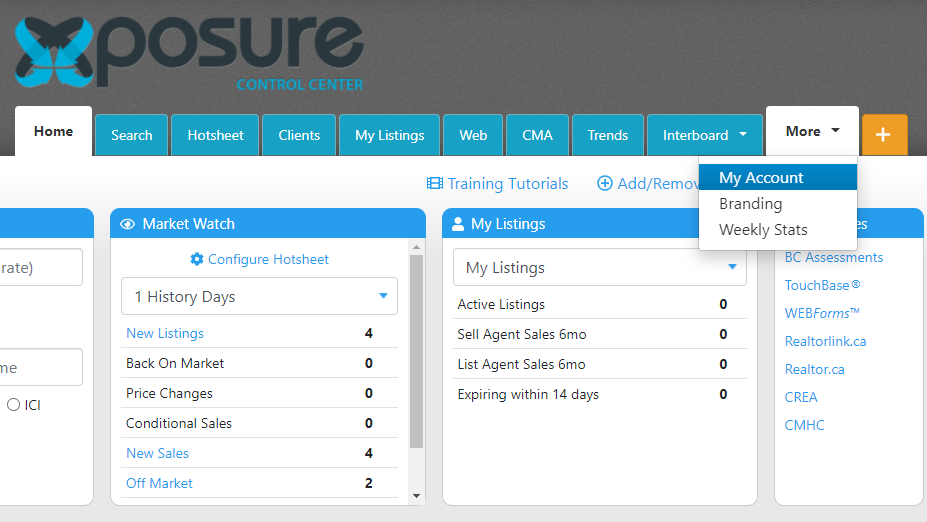
1. Click on the More tab, and then to My Account.
In Xposure™, click on the More tab. In the drop down menu, click on My Account.
Next, click the Update Image button as shown below.
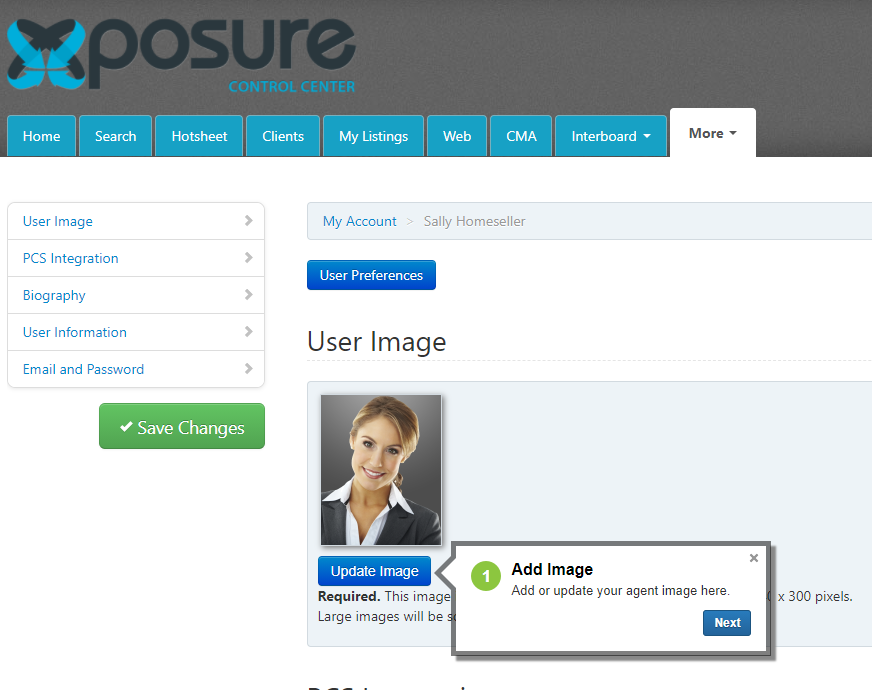
A pop up window will allow you to find the photo on your device. Select the photo you are importing. Ensure the image is in portrait orientation with a minimum size of 240 x 300 pixels. Large images will be scaled to a maximum size of 480 x 600 pixels. The photo will now populate. Click Save to complete the process.