The Cover Pages will be the first thing your client sees when opening PCS™, The MLS® Gateway, or the CMA Gateway for the first time. You can create a cover page that is unique to each scenario, or use a single, more generic cover page to be used in all three scenarios.

Agents have two main options for the creation of Cover Pages:
1. Work with a design team that works with RealtyServer, or
2. Agent can create their own Cover Page and then uploaded to Xposure™. This options also allows an Agent to use a designer of their choosing.
Work with a design team that works with RealtyServer
If you do not already work with a designer and would like to receive a quote from a design team that works with RealtyServer, contact sales@realtyserver.com
Agent can create their own Cover Page and then uploaded to Xposure™
If you work with a designer, or are proficient in Photoshop, you can create your own Cover Page and then upload them to Xposure™.
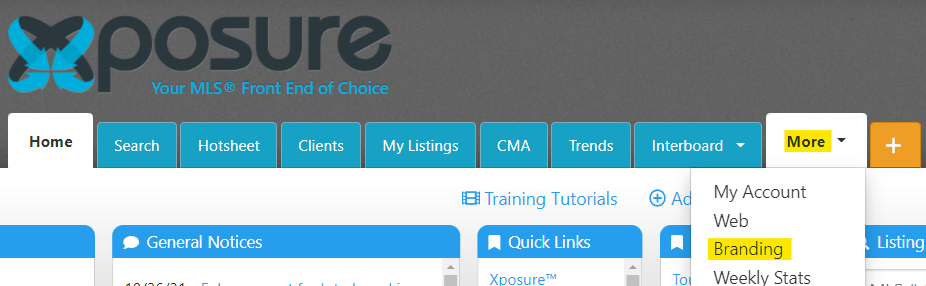
To download the Cover Page Design Guide, log into Xposure™, click on the More tab and then click Branding.
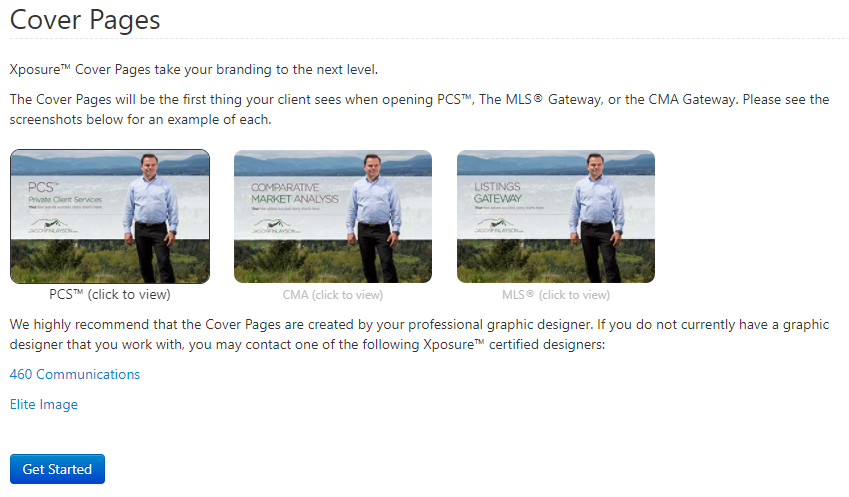
The Cover Page option will be the second option on the Branding page. Click the blue Get Started button to continue.
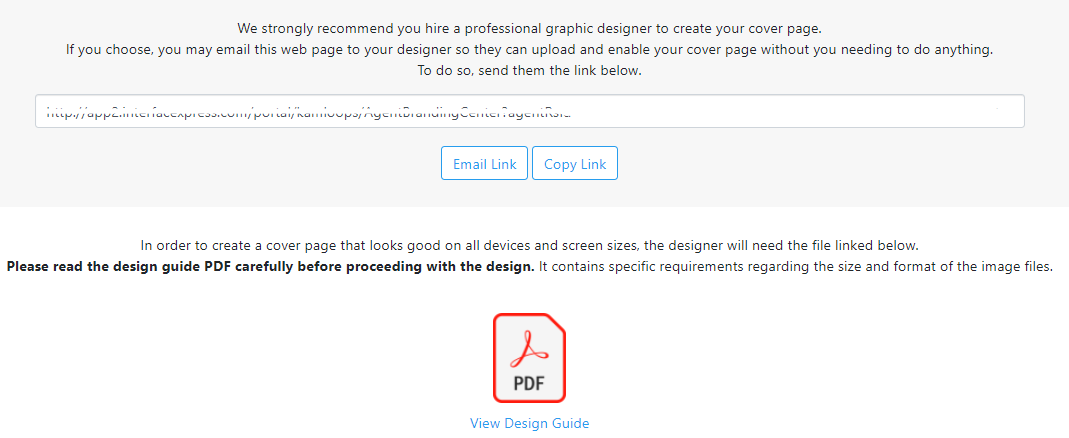
On the next screen you will first have the option to email/copy the Design Guide to be sent directly to your designer. The URL that will be shown will be customized for your profile.
The second area is a PDF Design Guide link.
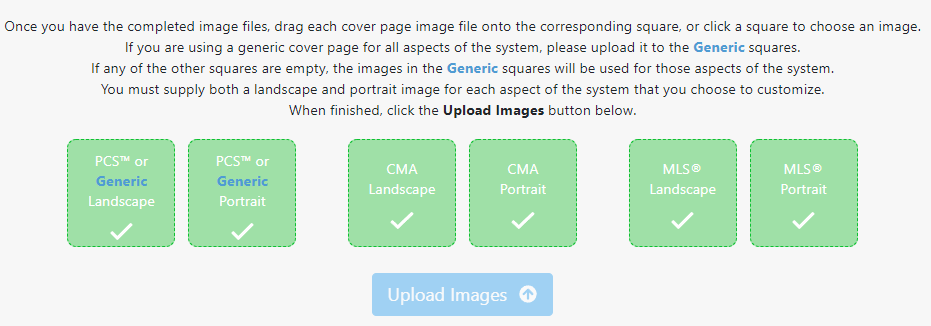
After you have completed the design or your designer has emailed you back the files, you can drag and drop the necessary files into the relevant field. You can create a cover page that is unique to each scenario, or use a single, more generic cover page to be used in all three scenarios. The boxes will turn green, as shown below, if the size requirement has been met. Once you have added all the files, click the Upload Images button.
Once the files have uploaded, you can click the Preview Cover Page button to test the files you have uploaded.

The preview screen has options along the top to preview your banner with different screen size options. Once you are finished, click the Done button at the top right hand side of the menu.
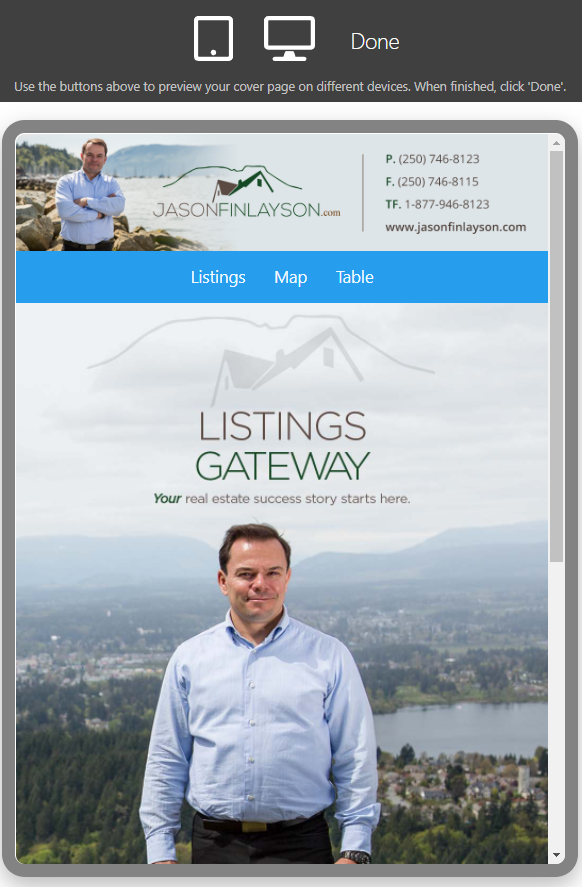
Once you are happy with the Cover Page, click the green Enable Cover Page button.

Once you have enabled your banner, the green button will turn to the red Disable Cover Page button as shown below. You can disable your Cover Page as you need to.
